
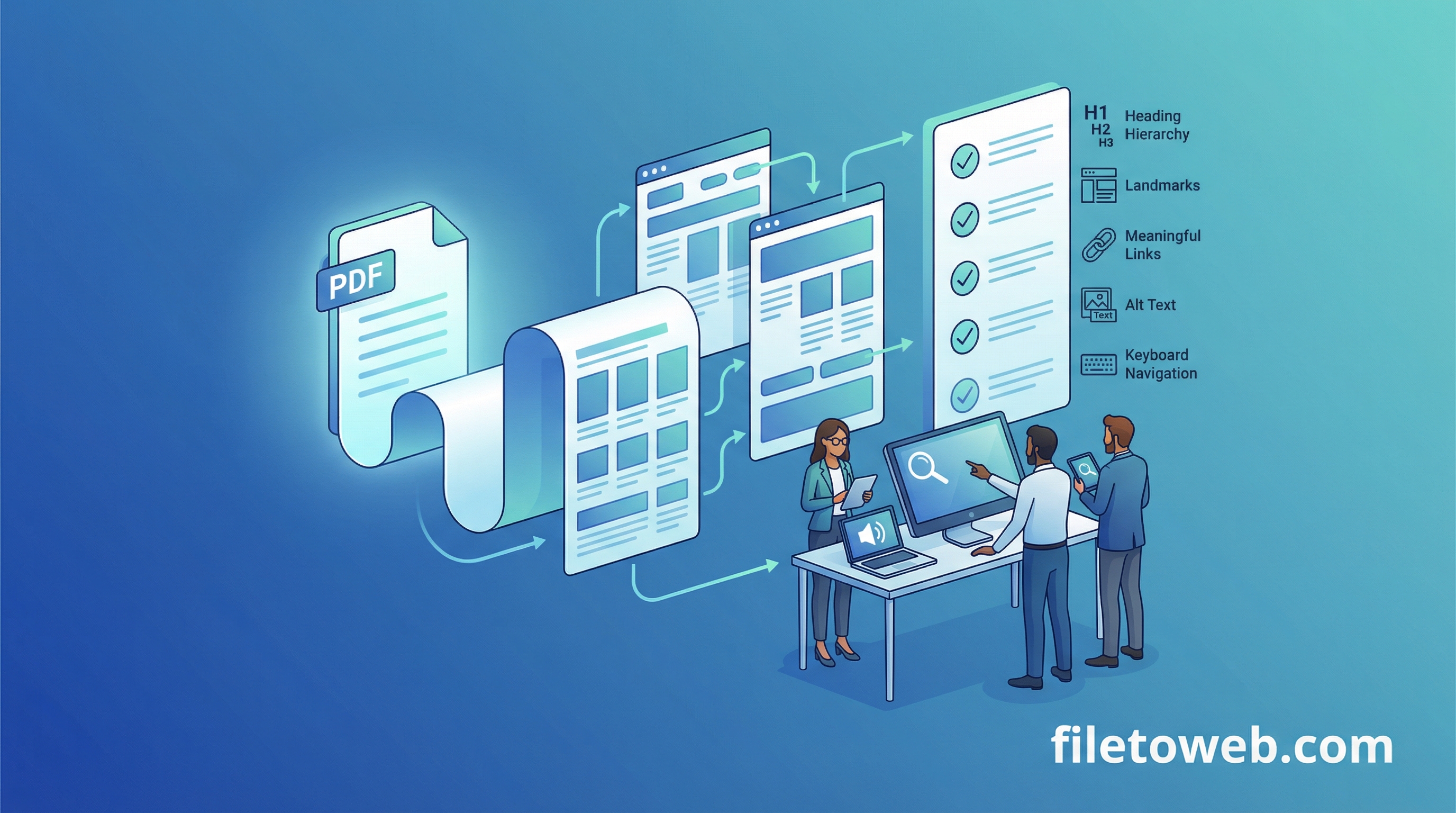
If your team publishes PDF-heavy content, conversion is only step one. The quality bar is whether your output is actually readable, navigable, and usable for real users across devices and assistive tech.
This checklist helps teams run an accessibility-first workflow in FileToWeb before publishing.
1) Convert to semantic HTML first
Start by converting your PDF into web-native pages. This gives you:
- proper heading and landmark structure to inspect
- editable output instead of image-based pages
- content that can be validated and improved before going live
2) Run wcag-page-audit page-by-page
Use the workflow to scan each page for:
- heading hierarchy issues
- landmark gaps
- weak link labels
- reading-order risks
The goal is not to chase perfect scores. The goal is to identify high-impact fixes quickly so publishing does not create avoidable accessibility debt.
3) Run alt-text-assistant where images carry meaning
Use AI suggestions to accelerate coverage, then review manually:
- keep alt text specific and contextual
- keep decorative visuals empty (
alt="") - avoid repetitive generic labels
4) Apply plain-language variants when needed
For public-facing policies or notices, use plain-language-compliance-brief to generate audience-specific output from the same source document.
5) Final editor pass before publish
Use FileToWeb Studio to resolve the flagged issues, save a version, and publish intentionally.
Suggested operating model for teams
Use this order as your default:
- Convert
- WCAG audit
- Alt text pass
- Plain-language brief (if needed)
- Publish
This keeps teams fast without skipping quality controls.
Next steps
- Read AI workflow docs: AI Workflows
- Start your own run: Create a free account
- Review workflow presets: Workflow Hub and Presets