Accessible view
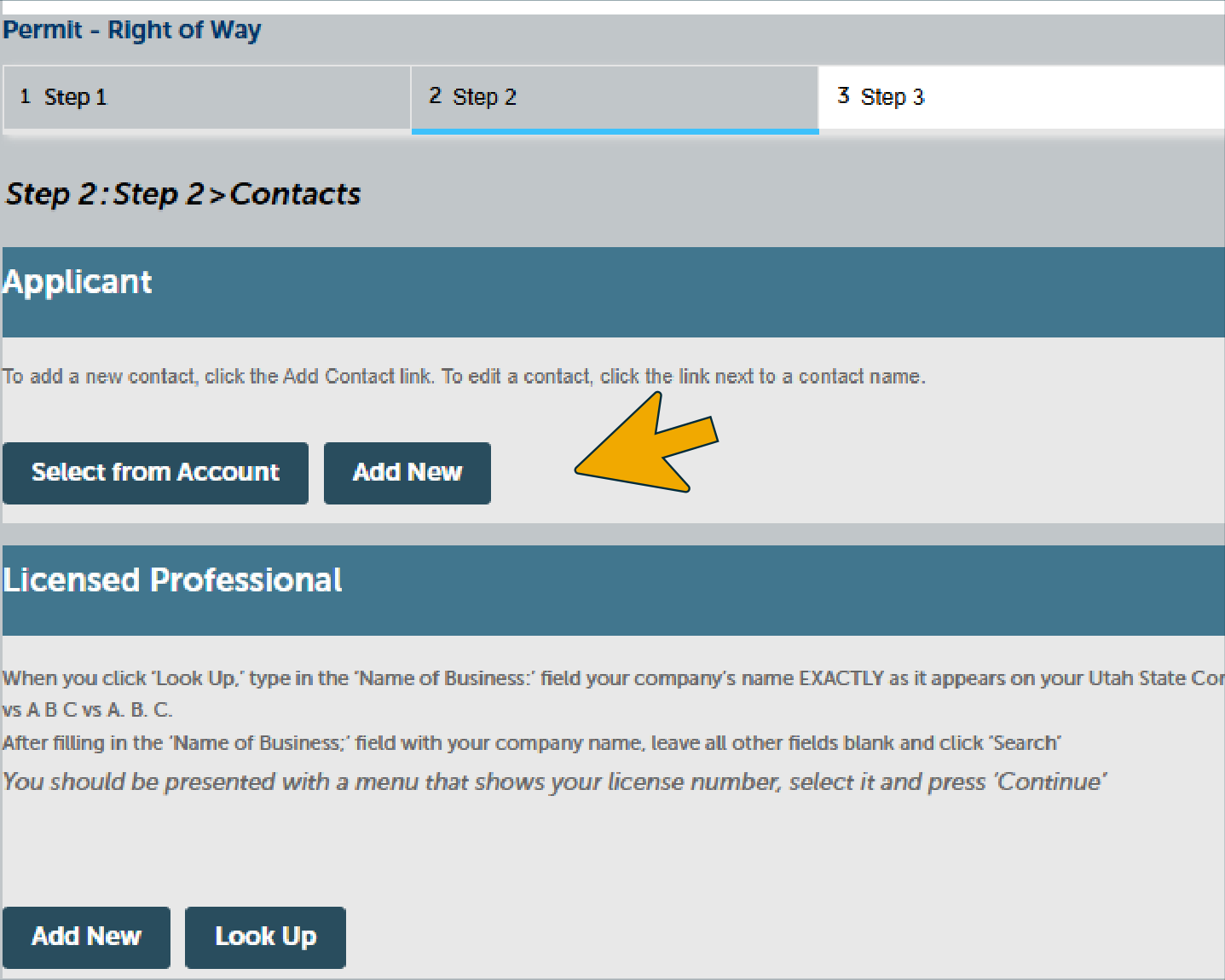
Screenshot transcript: The online portal is on “Step 2 > Step 2 > Contacts.” The Applicant section says, “To add a new contact, click the Add Contact link. To edit a contact, click the link next to a contact name.” Its visible controls are Select from Account and Add New; the orange arrow highlights Add New. A Licensed Professional section appears below with Add New and Look Up controls.
Accessible view
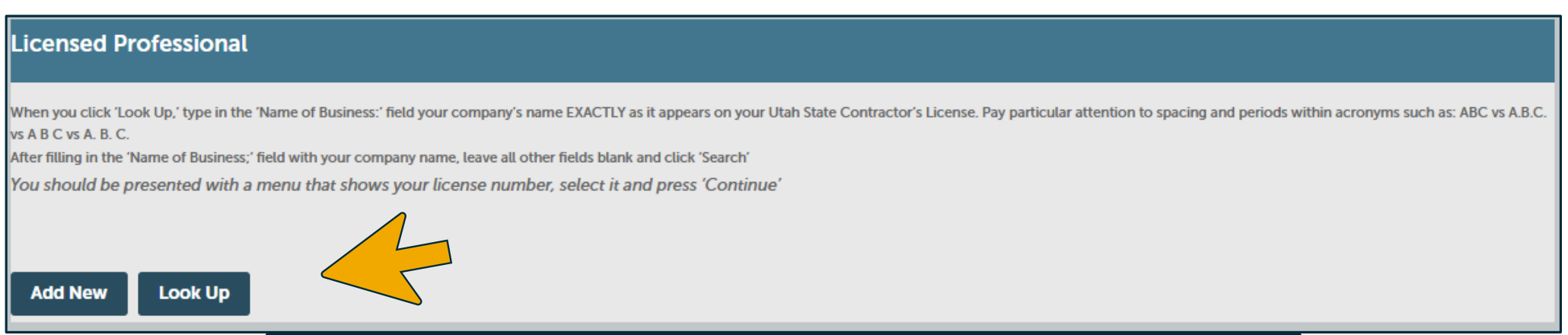
Screenshot transcript: The Licensed Professional section explains that after selecting Look Up, the company name is entered in the Name of Business field, then Search is selected; the displayed license number is selected and Continue is pressed. The visible controls are Add New and Look Up; the yellow arrow highlights Look Up.
Accessible view
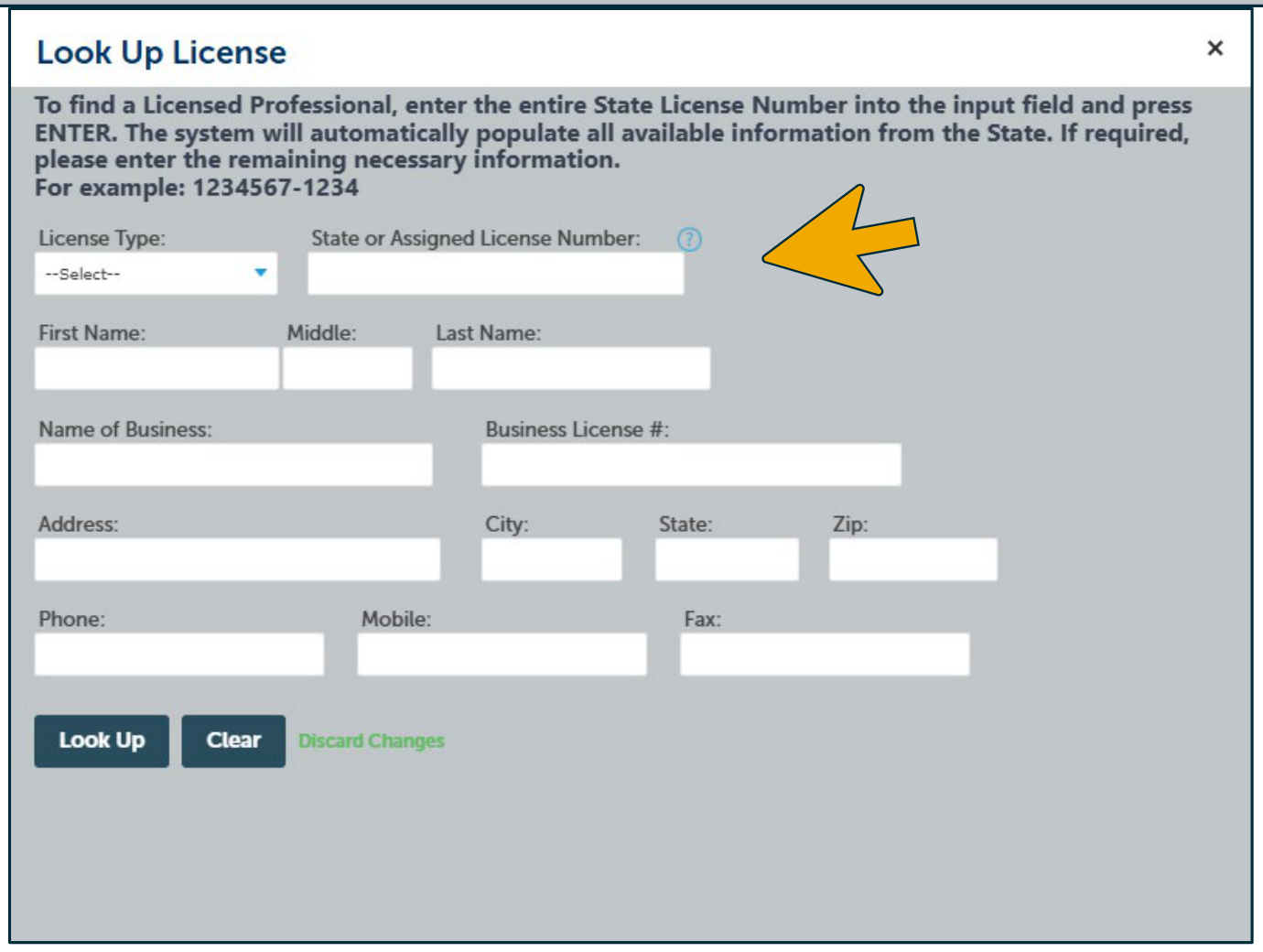
Screenshot transcript: The “Look Up License” dialog instructs the user to enter the entire state license number and press ENTER; it shows the example 1234567-1234. The yellow arrow points to the State or Assigned License Number input. Other visible fields are License Type, First Name, Middle, Last Name, Name of Business, Business License #, Address, City, State, Zip, Phone, Mobile, and Fax. The dialog has Look Up and Clear controls, a Discard Changes link, and a close control.