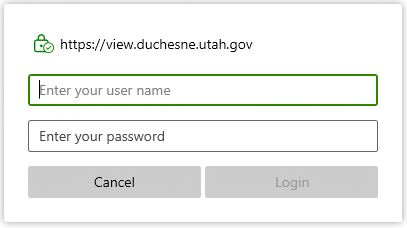
After entering the server name, you will be prompted to enter your username and password. If this is a first-time setup, you will be prompted to change the temporary password on the next screen. Make sure to follow the instructions located on the send out email you should have received after your account was created.
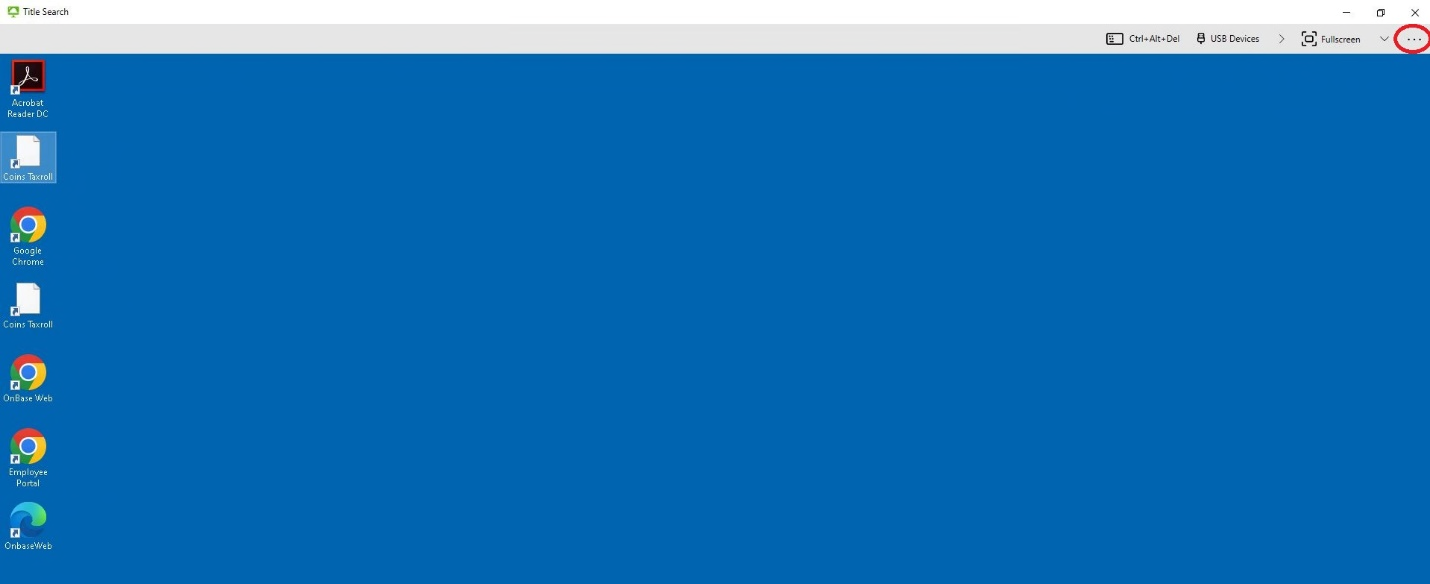
Now that your account has been set up, and your server has been established, you are ready to join the remote desktop by clicking the Title Search icon. This will begin the start up sequence, where you will be prompted to push a “Connect” button. Once you have established a connection you will be on one of our remote desktops.
Click on the three periods (…) in the control ribbon located at the upper center of the screen, or you can exit fullscreen mode and look to the upper right corner, and you will be able to access the settings window through the same button. Please note if you leave it in a minimized view, you might not see the entirety of the programs, and I would suggest putting it back to fullscreen.