
Planning
Work through complex changes with a visible plan and review the proposed steps before Studio applies them.
Open a converted page in FileToWeb Studio to edit content, layouts, images, metadata, and accessibility findings inside responsive previews—then save a version and choose exactly what to publish.
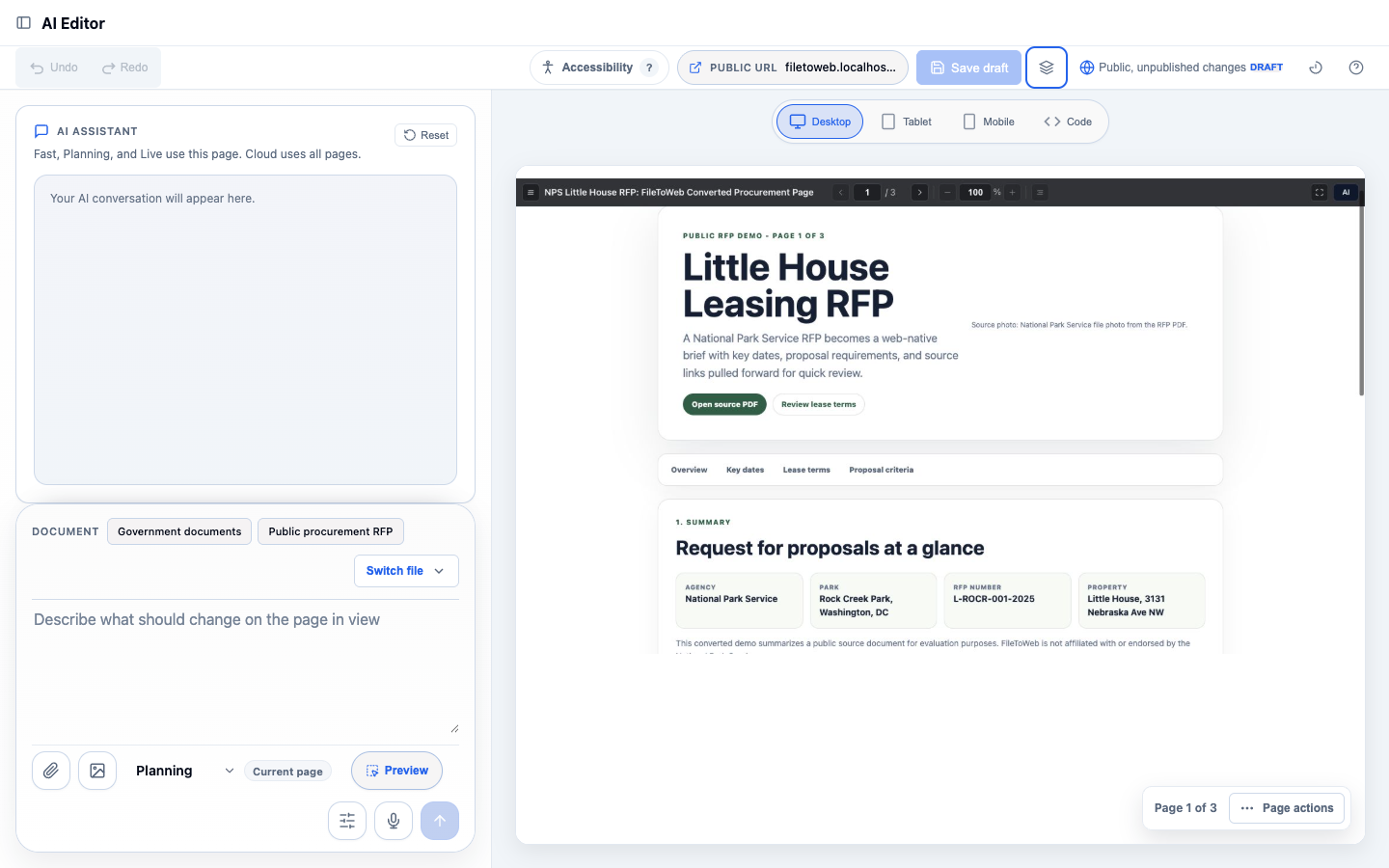
FileToWeb's conversion platform reconstructs the source as responsive HTML. Studio is the workspace where your team reviews and improves that converted page before publishing.
Three editing modes
Match the AI workflow to the change you are making, without giving up review or publishing control.
Work through complex changes with a visible plan and review the proposed steps before Studio applies them.
Make focused edits quickly when the scope is clear and you want a concise path from instruction to result.
Speak or type changes in real time while the responsive page remains visible beside the conversation.
A complete page workspace
Work on the content and the page around it—from imagery and structure to metadata and source context.
Select page regions, adjust layout, and refine content while keeping the rendered result in view.
Replace images, adjust crops, and review how media behaves across responsive previews.
Bring supporting files into the page-scoped conversation when an edit needs more context.
Use search when a change benefits from additional context, while keeping the page itself as the working scope.
Inspect and refine the underlying page structure when visual editing alone is not enough.
Review titles, descriptions, and publishing details alongside the visible page content.
A deliberate review loop
Every change moves through a visible sequence so a draft never becomes public by accident.
Open the current page, responsive previews, and relevant accessibility findings.
Describe the change, edit visually, or work directly with page structure.
Review the rendered result, responsive behavior, and automated findings.
Keep the result as a draft or a named version that can be revisited.
Choose the reviewed version and explicitly control its public or private state.
Human control by design
FileToWeb keeps the AI conversation connected to the page while giving your team concrete ways to inspect, recover, and approve changes.
AI suggestions can accelerate the work, but they do not replace editorial, policy, legal, or accessibility review.
FileToWeb uses Axe and WCAG-focused checks to help identify issues and guide review. Automated checks cannot find every barrier and do not certify that a page complies with any law or standard.
From instruction to reviewed page
Start with free credits and bring your next converted page into FileToWeb Studio.