
Convert PDF to a WordPress Page
Create an editable draft WordPress Page through the intentional PDF-to-Page workflow.
Pages > Convert PDF to Page is separate from ordinary attachment and Proud Document sync.
Use it when the desired output is an editable WordPress Page rather than a local HTML preview attached to an existing PDF source.
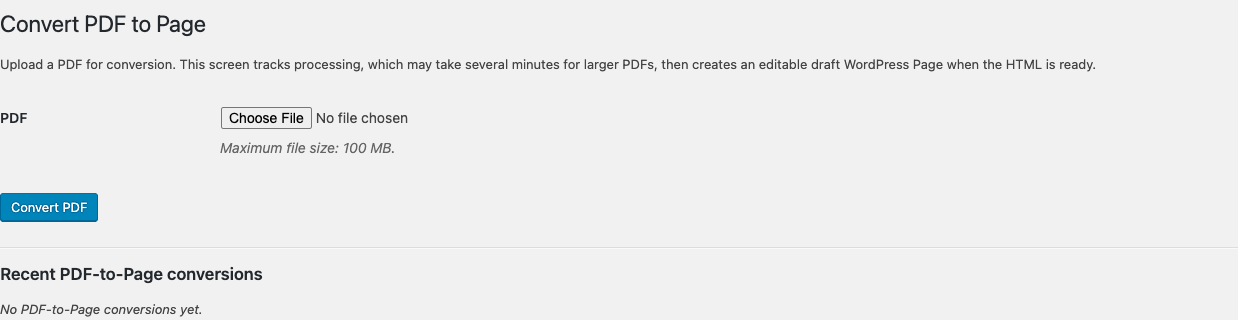
Convert a PDF
- Open Pages > Convert PDF to Page.
- Choose one PDF up to 100 MB.
- Click Convert PDF.
- Keep the screen open to allow automatic status refresh, or return later.
- When conversion is ready, open the generated draft Page.
- Review and edit the WordPress content.
- Publish the Page through the normal WordPress editorial workflow.
What happens during conversion
- The PDF is uploaded directly for this conversion workflow.
- It is not retained as a new Media Library item.
- No placeholder WordPress Page is created while processing is incomplete.
- The screen automatically polls pending jobs while it is open.
- When ready, the plugin creates one editable draft Page from the WordPress-local HTML.
- The uploading administrator receives one notification email with the draft edit link when email delivery is configured.
Publishing the draft is the approval step.
Recent conversion actions
The recent conversions area can show:
- Processing status
- Ready draft Page link
- Poll status for an immediate refresh
- A customer-safe error and support reference
- Retry processing for retryable failures
Automatic retries preserve completed FileToWeb pages and process unresolved pages rather than discarding successful work.
When not to use this workflow
Do not use PDF-to-Page merely to make an existing Proud Document preview accessible. Standard Proud Document sync already keeps the original PDF and supplies a WordPress-local HTML preview when ready.
Use PDF-to-Page when an editor specifically wants to own, edit, and publish a native WordPress Page.
Source and publishing behavior
- The generated Page is a normal WordPress draft.
- FileToWeb does not publish it automatically.
- It does not automatically replace every link to a separate Media Library PDF.
- The editor should review structure, links, images, tables, and accessibility before publishing.