
Daily Operations and Migration
Sync new PDFs, read statuses, poll processing, and migrate existing content in controlled batches.
New PDF workflow
For a configured site, the normal flow is:
- An editor uploads or attaches a PDF.
- WordPress schedules a FileToWeb sync.
- FileToWeb imports and processes the PDF.
- WordPress polls the document status.
- When ready, WordPress caches a complete local HTML copy and its required assets.
- Public replacement begins only after the local copy is ready.
Most PDFs finish within a few minutes. Larger or more complex PDFs can take up to 10 minutes. Editors can leave the screen while processing continues.
Automatic scheduling and polling use WordPress cron. The plugin also provides manual actions for sites where cron is delayed or replaced by a server scheduler.
Status meanings
| Status | Meaning | Recommended action |
|---|---|---|
| Not synced | No FileToWeb document is associated with this source | Click Sync PDF now |
| Processing | FileToWeb accepted the PDF and work is active | Wait or click Poll status |
| Ready | WordPress-local HTML is complete | Review local and public output |
| Failed | Processing needs attention | Note the support reference and click Retry processing |
Document and attachment actions
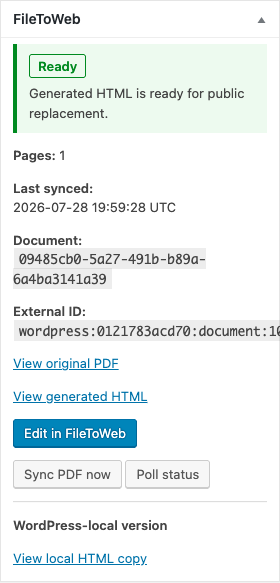
| Action | Use it when |
|---|---|
| View original PDF | You need to inspect or download the unchanged source |
| View generated HTML | You want to inspect the FileToWeb-hosted conversion as an administrator |
| Edit in FileToWeb | The conversion needs AI-assisted or advanced editing |
| Sync PDF now | The PDF is new, changed, or has not been submitted |
| Poll status | Processing may have completed but WordPress has not refreshed its state |
| Retry processing | A failed document should be queued again |
| View local HTML copy | You want to inspect the exact WordPress-hosted public preview artifact |
When a FileToWeb edit is published, use Sync PDF now or Poll status as appropriate to refresh WordPress from the latest published FileToWeb version.
Settings-page action reference
| Button | What it does | Scope |
|---|---|---|
| Save FileToWeb settings | Saves the master switch, API connection, public behavior, EPUB choice, and batch size | Site |
| Test connection | Verifies the saved key, workspace, folder, and required scopes | Site |
| Backfill batch | Runs one immediate bounded scan of existing PDF attachments and Proud Documents | Up to Batch size |
| Poll pending | Immediately refreshes a bounded set of documents already in progress | Up to Batch size |
| Queue all Documents | Creates a tracked queue containing all Proud Documents | All Proud Documents |
| Queue all Meeting PDFs | Creates a tracked queue containing all Agenda, Agenda Packet, and Minutes PDFs | All Meeting PDFs |
| Run next queue batch | Processes the next bounded group without waiting for the scheduled queue event | Up to Batch size |
Choose backfill or a bulk queue
Use Backfill batch for a small, immediate, bounded check.
Use Queue all Documents or Queue all Meeting PDFs for a complete, trackable migration. The queue processes only the configured Batch size at once and schedules later batches. Run next queue batch is the manual fallback when WordPress cron is unavailable or delayed.
Queueing does not make conversion free. Each new PDF consumes FileToWeb Credits according to its processing usage.
Recommended migration sequence
- Test one representative PDF.
- Set Batch size to
5. - Queue the relevant content type.
- Run or wait for one batch.
- Review the processed page count and Credit usage in FileToWeb.
- Increase Batch size only after quality, performance, and budget are understood.
- Continue until the queue reports no remaining items.
The API is idempotent. Repeated submissions for the same unchanged source return the existing FileToWeb document rather than creating duplicate conversion work.
Changed PDFs
The plugin records a source fingerprint. When the same WordPress attachment or Proud Document points to changed PDF content, the stable external identity is retained and FileToWeb reprocesses the changed source.
Until the replacement is ready, the prior source and public fallback remain protected. Administrators should review the refreshed local copy after a source replacement.
Polling without WordPress cron
If the hosting platform disables request-triggered WordPress cron:
- Use a real server scheduler to call WordPress cron at least every five minutes, or
- Use Poll status, Poll pending, and Run next queue batch manually during a pilot.
Manual sync submits work, but status polling is still needed before WordPress can cache and publish ready HTML.